
How to Share Reviews on Social Media
A good review is proof, and proof is wasted sitting in your inbox. Cloutly turns any review into a designed image with a caption, ready to post to Facebook, Instagram, LinkedIn or Google.
Sharing a review
Open the review in your Inbox and click Share at the top of the conversation. You can also use Share review in the contact panel on the right.
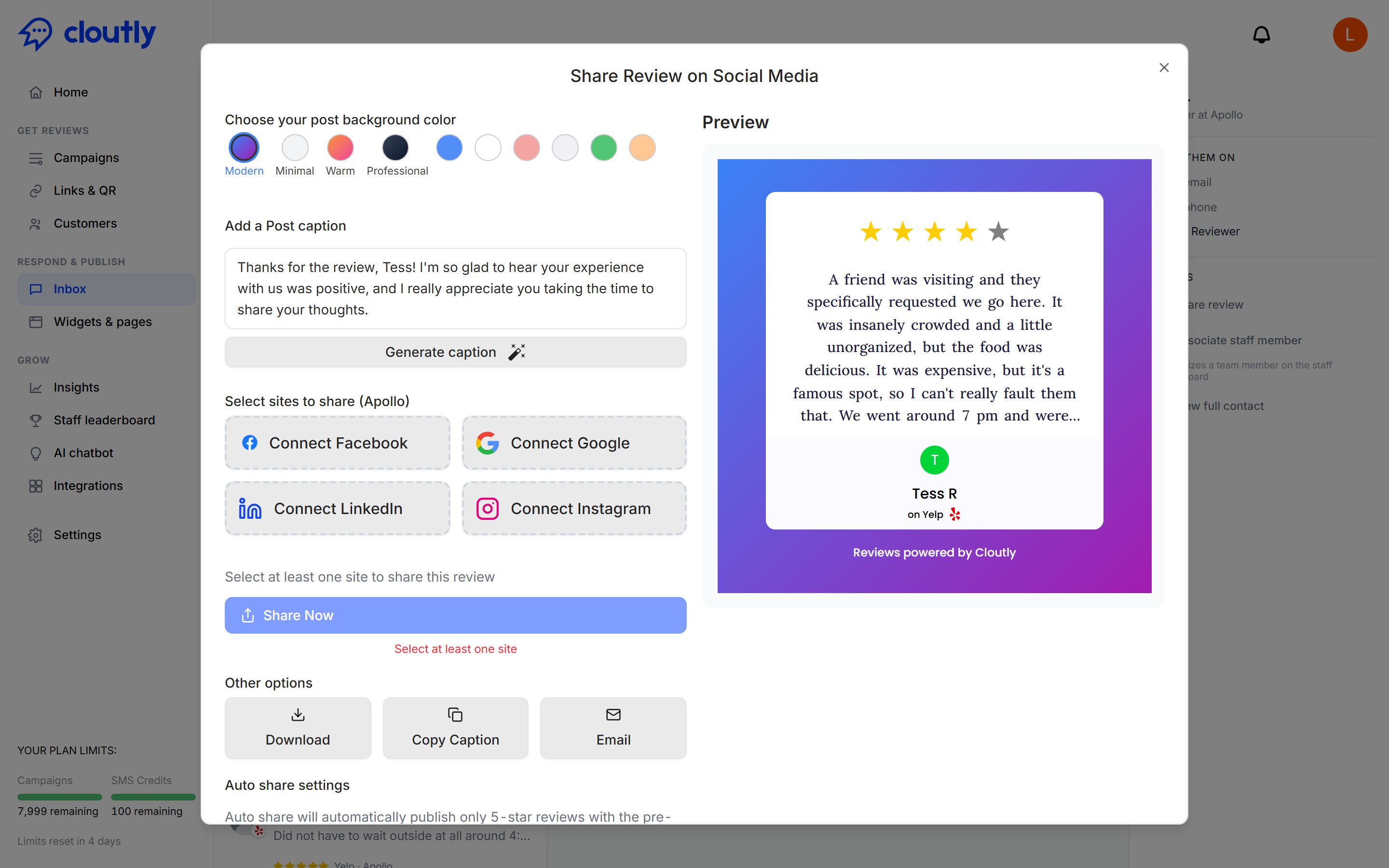
The preview on the right is the actual image that gets posted. It carries the star rating, the review text, the reviewer's first name and which site they left it on.
Making it look right
Choose your post background colour gives you four named styles — Modern, Minimal, Warm and Professional — plus a row of plain colours. The preview updates as you click, so pick whichever sits best with the rest of your feed.
Add a post caption comes pre-filled with a caption written for that specific review. If it is not quite right, edit it, or press Generate caption for a different one. Worth reading before you post: it uses the reviewer's name, and the tone will not suit every business.
Choosing where it goes
Under Select sites to share you will see the four platforms. Each needs connecting once — the button reads Connect Facebook, Connect Instagram and so on until you have done it, and after that you simply tick the ones you want.
Connections are per location, so if you run several locations with their own social accounts, each one connects separately.
Pick at least one and press Share Now. The button stays disabled until you do — if nothing happens when you click it, that is why.
If you would rather post it yourself
Three options sit under Other options, and they matter more than they look:
- Download — saves the image. This is the answer if you prefer posting through your own scheduling tool, or want to put it in a story, a newsletter or a printed flyer.
- Copy Caption — the caption text on its own.
- Email — send the post to someone else, which is how you hand it to whoever runs your social accounts.
Download plus Copy Caption covers every platform Cloutly does not post to directly.
Auto share — the one worth turning on
Sharing reviews one at a time works right up until you get busy and stop. Auto share removes that problem.
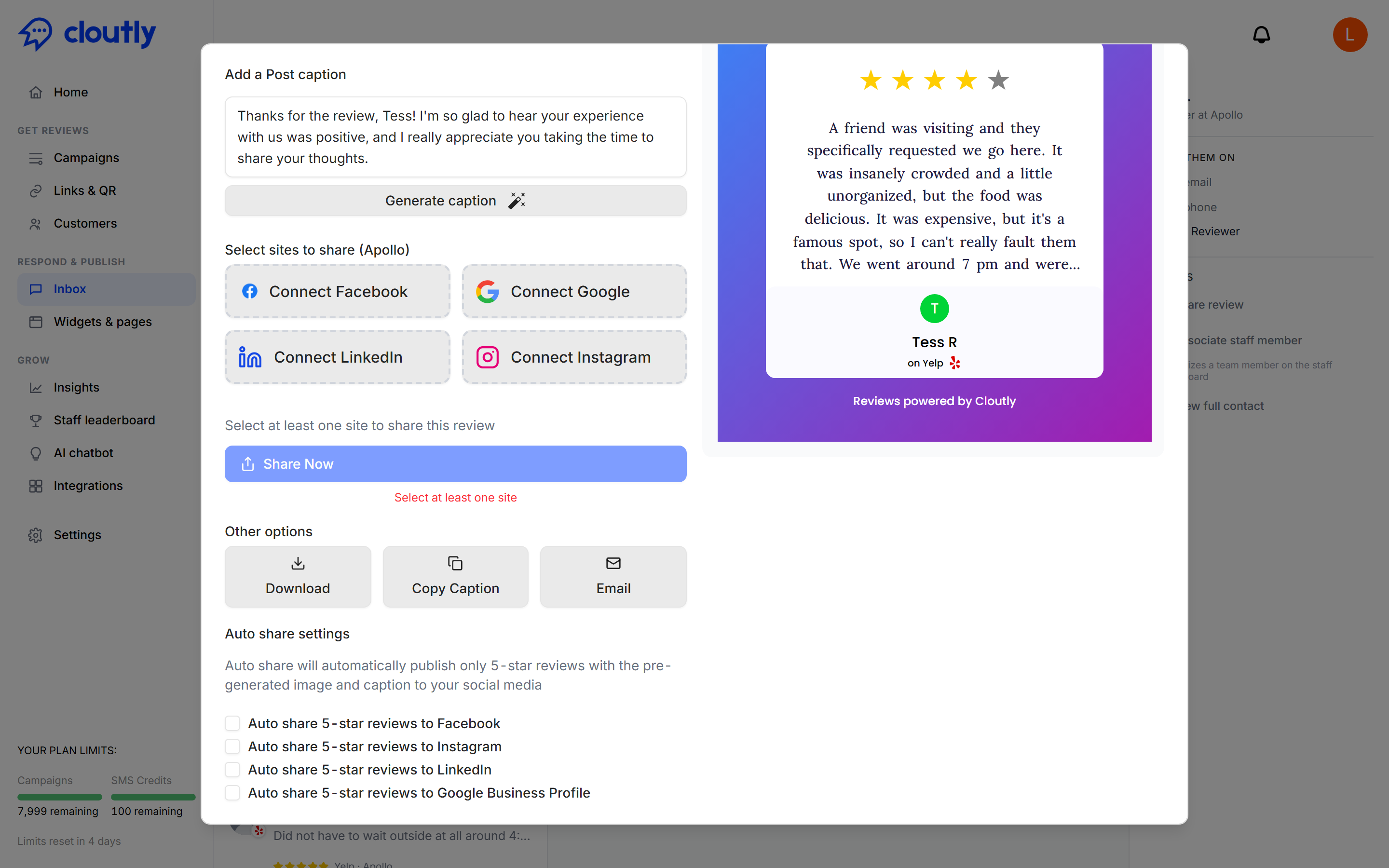
It automatically publishes only 5-star reviews, using the same generated image and caption, to whichever of these you switch on:
- Google Business Profile
The five-star restriction is the important detail — nothing mediocre goes out, and you are not trusting an automation with your reputation. Set it once and your best reviews become a steady trickle of social proof without anyone remembering to do it.
Google Business Profile is the quietly valuable one. Posting there keeps your listing active, which is the same profile people see when they search for you.
Worth knowing
- Reviewers are shown by first name and initial, as the review site displays them — you are not publishing anything they did not already make public.
- Check the caption before posting. It is generated per review and occasionally lands on a phrase you would not use.
- If a platform is not connected, its button will still say Connect — connect it once and it stays connected.