
How the Inbox Works
The Inbox is where everything that needs a human lands — reviews from every site you have connected, and direct messages between you and your customers. It is one queue instead of six browser tabs, and it is where you will spend most of your time in Cloutly.
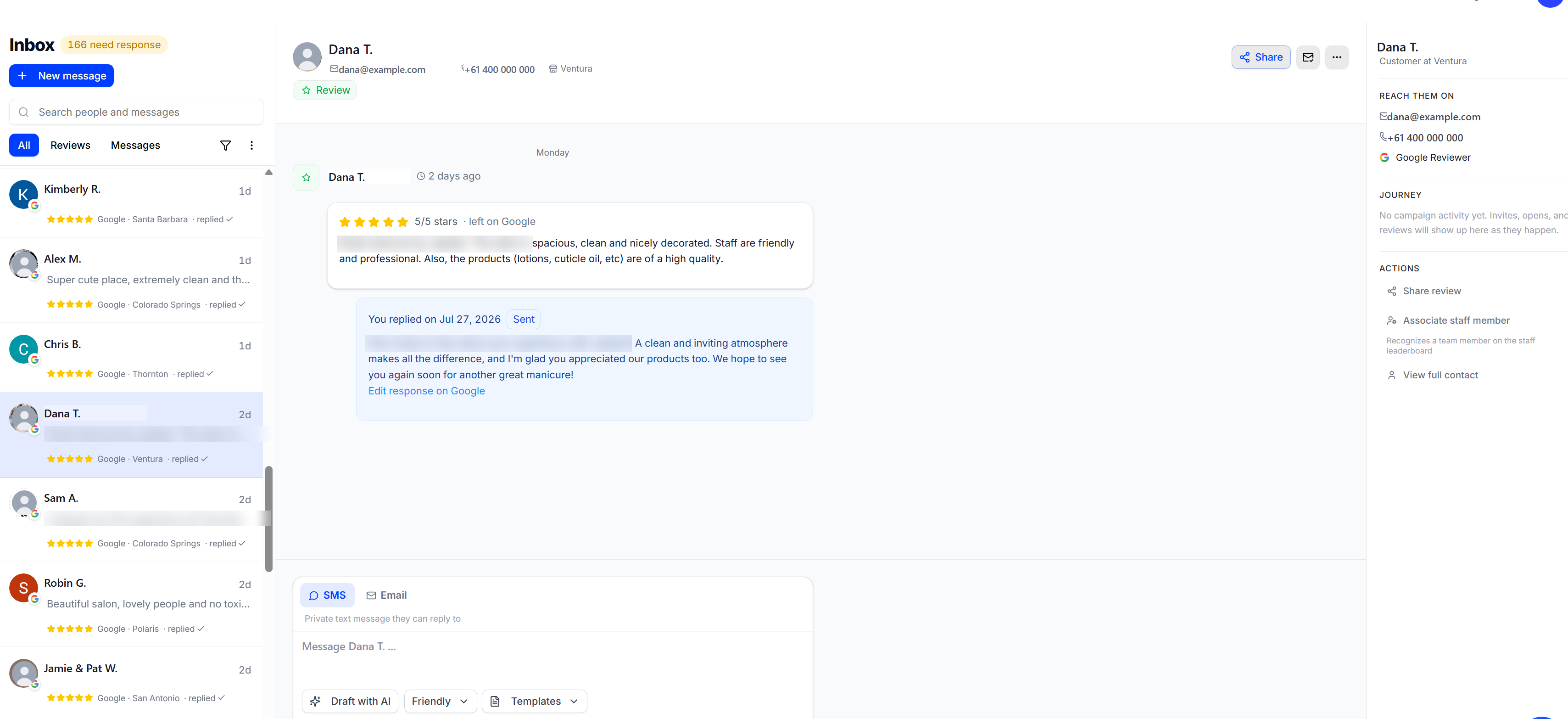
Three columns, and they do not change: the list of conversations on the left, the conversation itself in the middle, and everything Cloutly knows about that person on the right.
Finding the one that matters
The count beside the Inbox title is the number of conversations still waiting on a reply, and clearing it is the job. It counts reviews and messages together, so it will usually be higher than the reviews-only figure on Home.
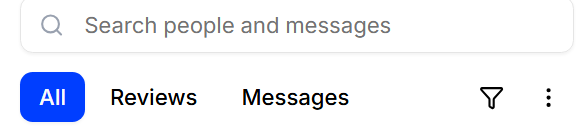
All — reviews and messages together, newest first.
Reviews — only feedback left on a public review site.
Messages — only direct conversations, including replies to your campaigns.
Search looks across both people and message content, so a half-remembered name or a phrase from a review will find the thread. The filter icon narrows the list further when you are working a specific location or rating.
New message starts an outbound conversation with someone rather than waiting for them to come to you.
Reading the list
Each row is designed so you can triage without opening anything.
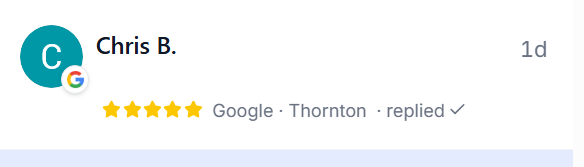
You get the star rating, which review site it came from, which of your locations it belongs to, and how long ago it arrived. The replied tick is the important one — it tells you this conversation is already handled, so you can skip it and keep moving down the list.
The conversation
Opening a row shows the full review and everything that has happened since.
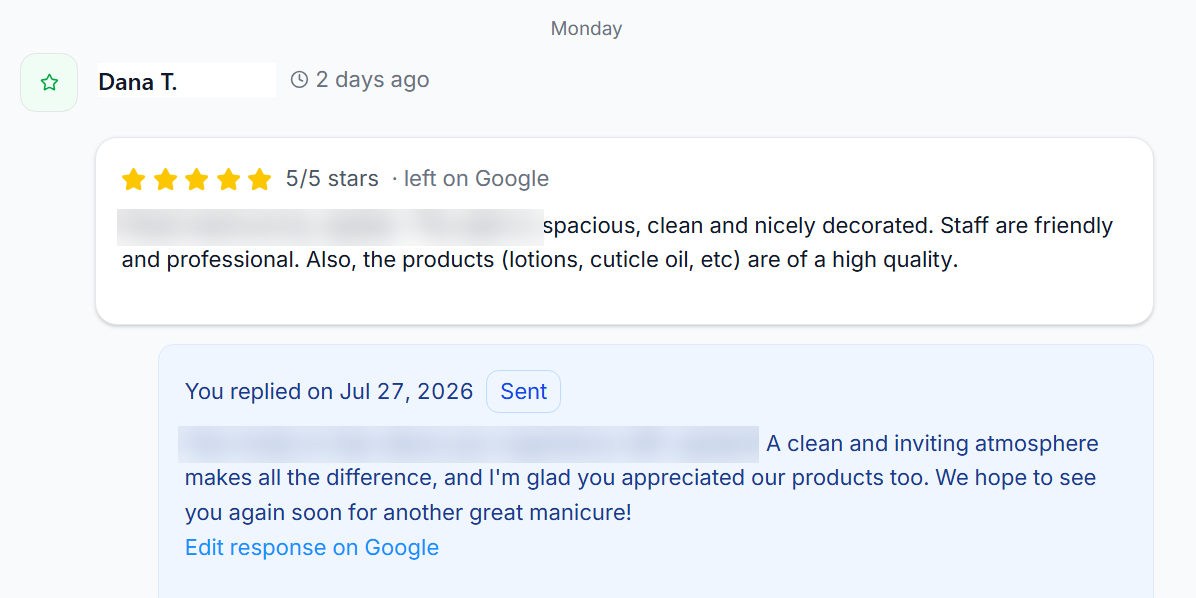
The review appears as the customer left it — rating, the site it was posted on, and the full text rather than the truncated preview. Underneath sits your reply, with the date it went out and a Sent marker.
For Google reviews you also get Edit response on Google. Your reply is published to the review site itself, not just recorded in Cloutly, so the customer and everyone reading their review sees it.
Replying
The reply box does more than send text.
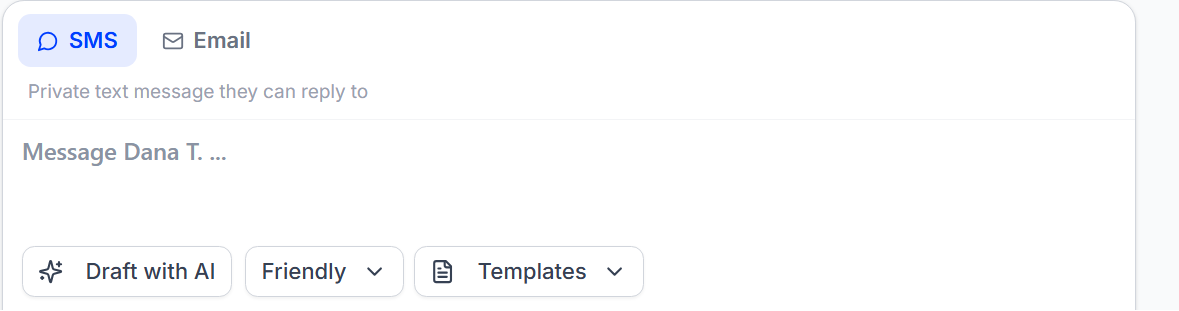
The tabs at the top decide where your words end up, and the difference matters:
Reply posts publicly, back onto the review site, where everyone reading the review will see it.
SMS and Email go privately to that person and nowhere else.
The tabs adapt to the conversation, so you will only be offered the channels that are actually available for that person — if Cloutly has no phone number for them, there is no SMS tab. This is the split to get right on a complaint: take it private first, resolve it, then reply publicly once there is something good to say.
Then three tools sit under the box:
Draft with AI — generates a full reply from what the review actually says, rather than a generic thank-you. From there you can accept it as written, edit it first, or publish it straight away.
Tone — Friendly, Professional or Playful, which changes how the draft reads. Worth matching to the situation: the register that suits a five-star rave is the wrong one for a complaint.
Templates — your saved replies, for the situations that come up constantly.
If you find yourself making the same edit to every draft, open the tone menu and choose Advanced prompt. That lets you save your own standing instructions — house style, things to never say, how to sign off — and every future draft follows them. It is the difference between fixing the AI's output forever and fixing it once.
Who you are talking to
The right-hand panel is the context you would otherwise be guessing at.
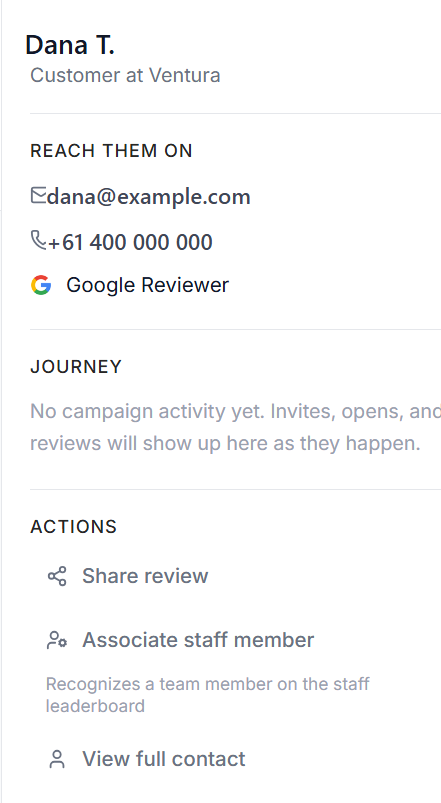
Reach them on lists the ways you can contact this person and which review site they came from. If it says no email or no phone, that is why some reply options are unavailable.
Journey is the campaign history — invitations sent, opens, and the review that resulted. This is how you tell a review you earned from one that simply arrived. When it says there is no campaign activity yet, this person found you on their own.
Actions covers the things worth doing after a reply:
Share review — push a good review out to your own channels.
Associate staff member — credit the team member the customer is praising. That credit feeds the Staff Leaderboard, which is the difference between a nice review and a team that knows about it.
View full contact — the person's complete history in Cloutly.
A routine that works
Filter to Reviews and clear anything without a replied tick, oldest first. Speed matters more than polish — a fast, plain reply beats a perfect one next week.
Use Draft with AI, then add the detail only you know: the staff member's name, the specific dish, the appointment. If you are making the same correction every time, put it in the advanced prompt instead.
On anything negative, switch to SMS or Email and take it private before you post anything under Reply.
Associate a staff member whenever a review names one. It takes a second and it is the input the leaderboard runs on.
Ten minutes a day keeps the count near zero, which is the whole point of having one queue.