
Set up Front Desk on your website
Front Desk answers visitors from information you approve and brings private requests into your Cloutly Inbox. Use it to help people find an answer, ask about your services or leave details for your team to follow up.
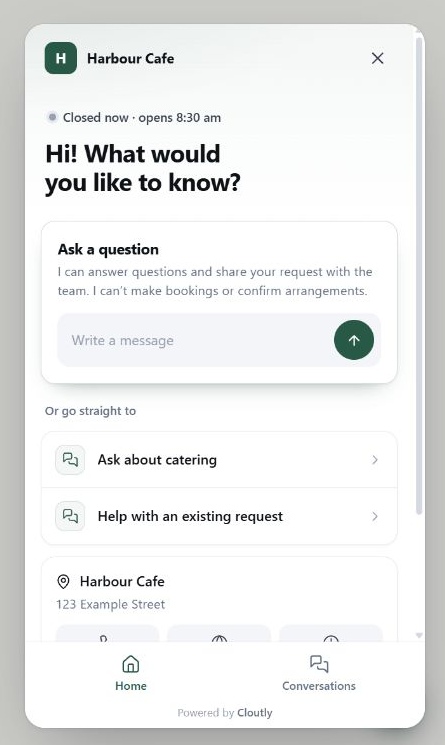
Synthetic example: the Front Desk home screen, using a fictional cafe. Your branding and quick buttons can be customised.
1. Start with your website
Open Front Desk in your Cloutly dashboard. If you already have one, choose New Front Desk to set up another.
Enter your website address and select the locations it should answer for. Follow the setup prompts to read your website. If you have several locations, check where requests should land.
2. Check what it knows
Review the pages, information and answers found during setup. Check important details such as services and opening hours. Correct anything that is out of date or missing before you approve it.
Your approval controls the information Front Desk can use. Reading a website is not the same as approving it. You can return to What it knows to add information and review changes later.
3. Try it as a visitor
Ask a few questions your customers would actually ask. Try an easy question, a specific service question and something your website does not explain.
If an answer needs work, add the correct information and test it again. Finish the review and approval steps when you are happy with the information it will use.
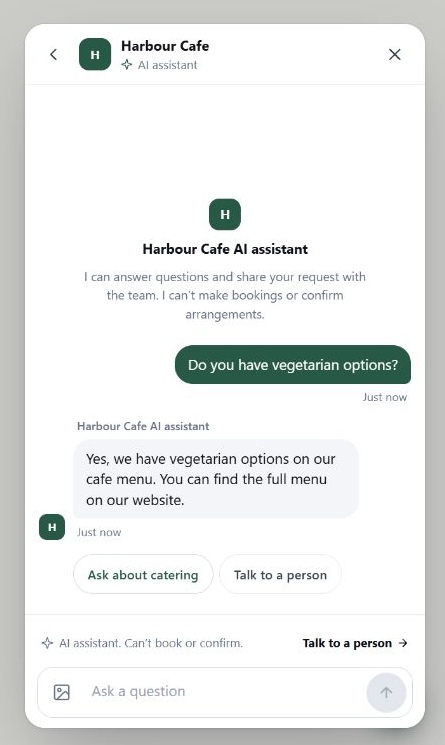
Synthetic example: a visitor asks a question and receives an answer. The conversation shown uses demonstration information.
4. Choose its focus and fine-tune the experience
Under Fine-tune, choose the focus that suits your business:
Generate leads: qualify interest and offer a relevant follow-up.
Support customers: help with an issue and bring in your team when needed.
Answer enquiries: answer questions without steering every conversation toward a lead.
You can also adjust the greeting, quick buttons, questions asked before a handoff, approved links, handoff rules and appearance. Choose who should receive private request emails. Optional SMS alerts require a verified mobile number. Each text alert uses one of your business's SMS credits. Verification codes are free.
Front Desk can share a request with your team. It does not make bookings or confirm arrangements on your behalf.
5. Install it and turn it on
Copy the installation snippet shown during setup or under Fine-tune → Install. Paste it into your website once, before the closing </body> tag. If someone else manages your website, send them the snippet to install.
Turn Front Desk on once you have approved its knowledge and completed the required settings. Saving settings in Cloutly does not install the snippet on your website.
Open your website and check that the launcher appears. Test a normal question and the path for leaving a request.
6. Follow up and keep improving
Private requests appear in your Inbox with the details the visitor has shared. Open the conversation to read the context and respond.
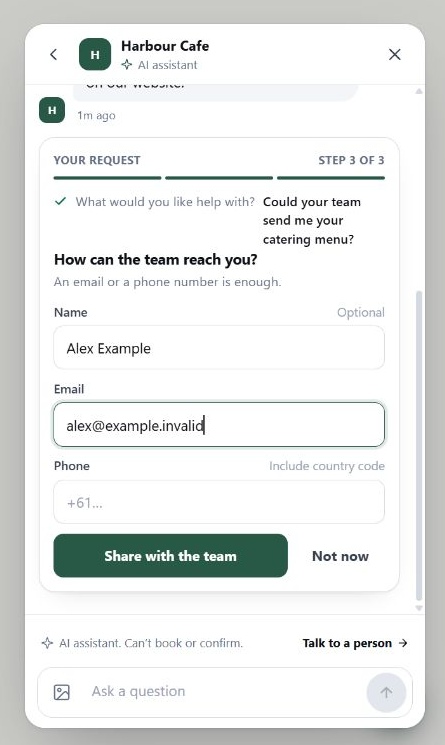
Synthetic example: after choosing Talk to a person, a visitor leaves an enquiry and contact details for follow-up. This does not confirm a booking.
Visit Couldn't answer to see questions Front Desk could not answer. Teach it a useful answer, then review and approve the knowledge changes before they go live.
If you write a correction from the Inbox, approve the correction and then approve the next changes in What it knows so it can be used by Front Desk.
When your services or hours change, update the information in What it knows and approve the changes. The previously approved information remains in use until the new version is approved.
If the widget does not appear
Check that Front Desk is on, its knowledge is approved and the installation snippet is present on the website. If setup reports missing settings, complete those before turning it on. If you still need help, contact Cloutly support with the website address and what you are seeing.