
The AI Chatbot: Capturing Leads on Your Website
Your review widgets show visitors that other people trust you. The AI Chatbot does the next bit: it catches the visitor who is convinced but about to leave without contacting you.
It sits under AI chatbot in the sidebar, and it puts a small chat widget on your own website.
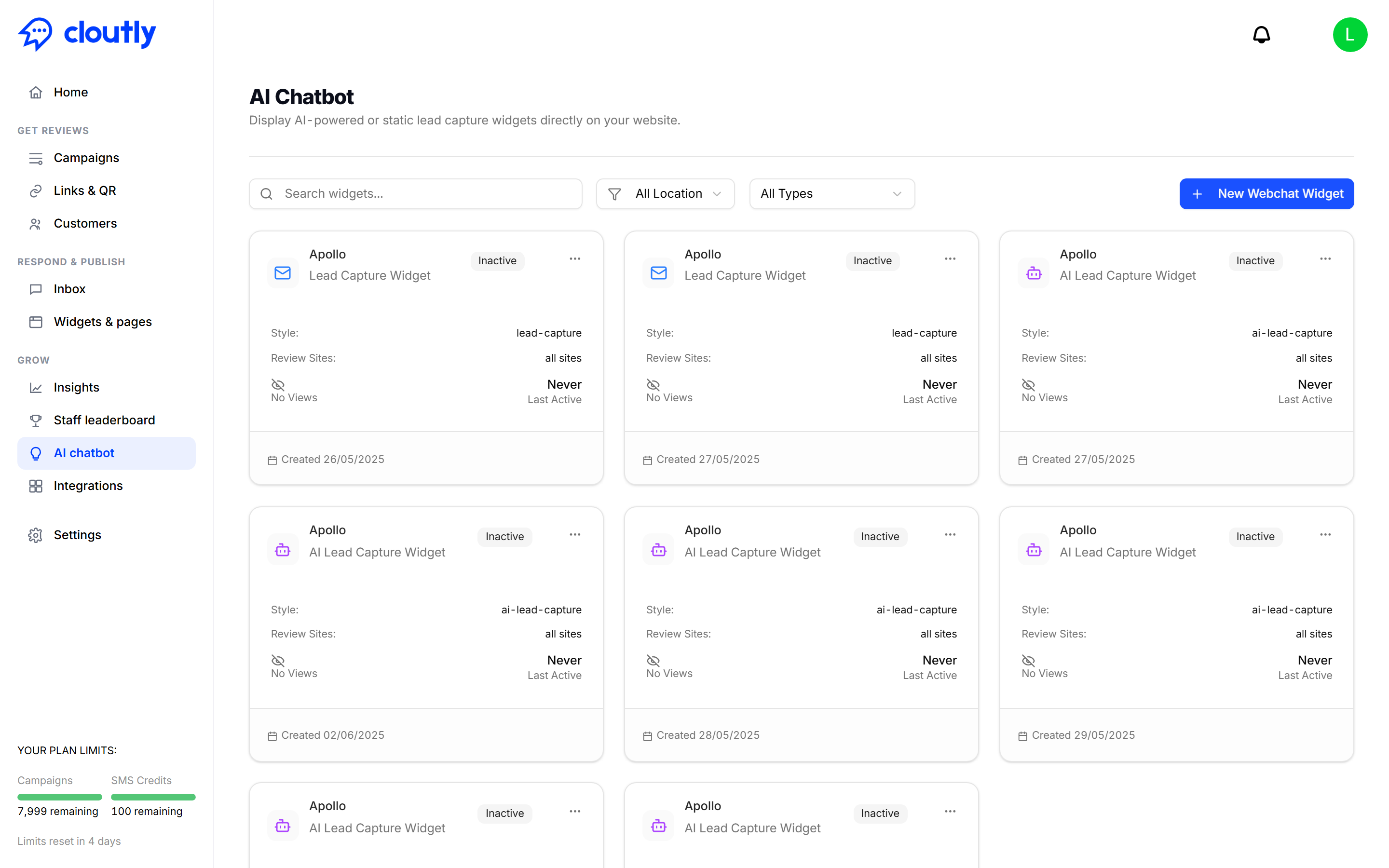
Two kinds of widget
When you create one you are choosing between two behaviours:
Lead Capture Widget — a straightforward form. The visitor leaves their details and you follow up. Predictable, and it never says anything you did not write.
AI Lead Capture Widget — an AI that actually converses. It answers questions and collects the enquiry as part of the conversation, rather than presenting a form.
If you are unsure, start with the plain Lead Capture Widget. It is the lower-risk option on a page where you are not going to be watching what gets said.
Creating one
New Webchat Widget, top right. Then configure it:
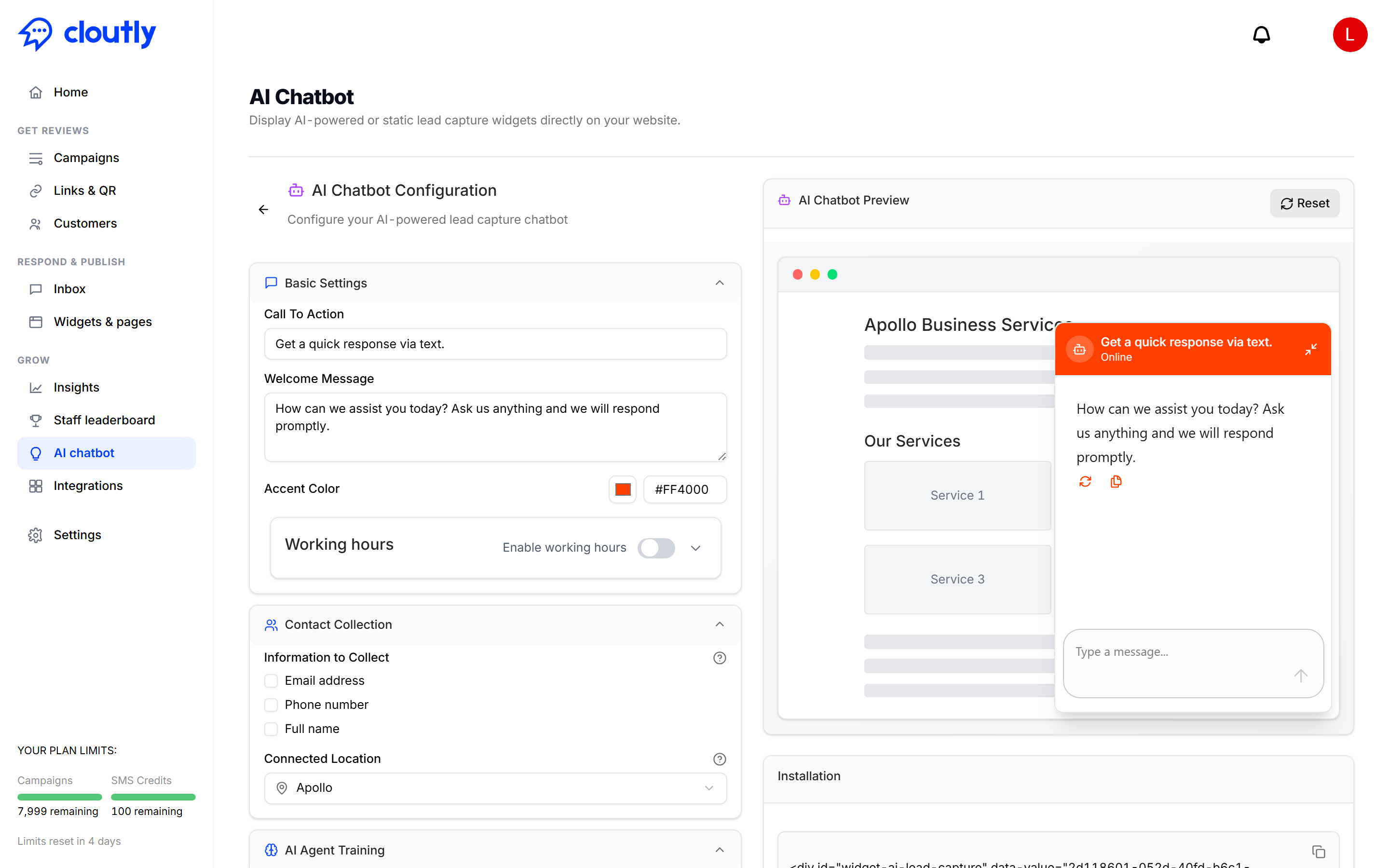
Call to action — the prompt a visitor sees before they open the chat. This is the text doing the persuading, so it is worth more than a minute's thought.
Welcome message — the first thing shown once they open it.
Accent colour — match it to your site.
Working hours — read this before enabling it
Enable working hours lets you set a timezone and a range of hours for each day of the week, with more than one range per day if you close over lunch.
There is one behaviour to understand before you switch it on:
Outside the hours you set, the widget does not appear on your website at all. It is not shown with an "we're closed" message — it is hidden completely.
That is the right behaviour if you only want the chat visible when someone can answer it immediately. It is the wrong behaviour if you were expecting after-hours enquiries to still be captured — with working hours on, they cannot be, because the visitor never sees a widget.
If collecting enquiries overnight matters to you, leave working hours off and reply the next morning. A form that catches a lead at 11pm is worth more than one that was hidden.
Putting it on your site
Each widget has a … menu on its card with the options for that widget, including the code to place on your website. As with review widgets, it is a snippet you paste in once — it stays in sync afterwards and you do not need to touch it again.
Reading the list
Each card shows you:
Active or Inactive — whether the widget is switched on.
Style —
lead-captureorai-lead-capture, which is which of the two types you chose.Review sites — which of your review sites the widget can draw on.
Views and last active — whether real visitors are seeing it.
A widget showing No views and Never is one that has not been installed, or has been installed on a page nobody reaches. Search, and the location and type filters, help once you have several.
Getting the most from it
Put it on the pages where people decide — pricing, contact, services — rather than every page on the site.
Write the call to action as a question a real visitor has, not "Chat with us".
Check the views figure after a week. No views means it is not where people are.
If you use the AI version, open the chat on your own site and ask it a few awkward questions before you leave it running unattended.